
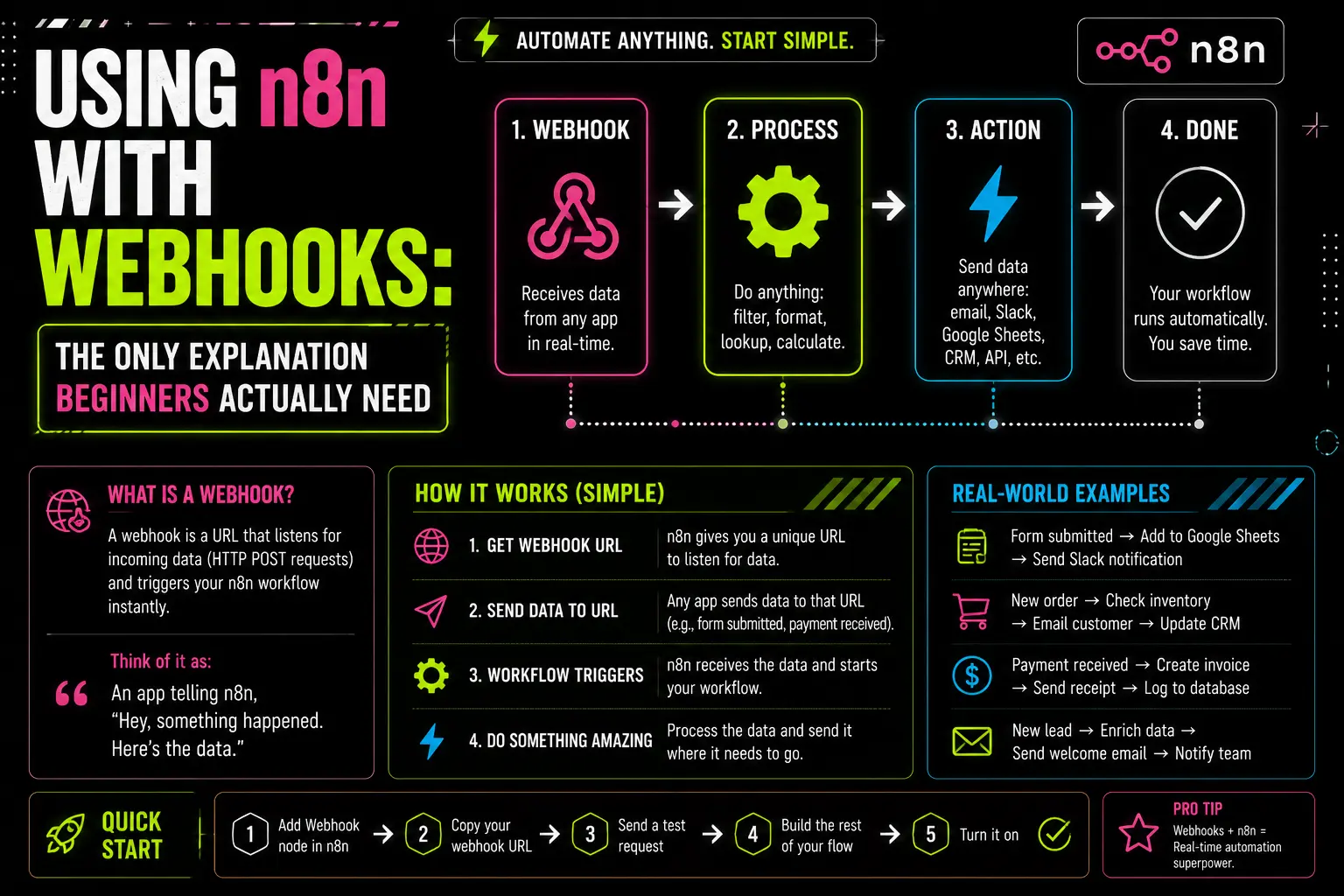
Webhooks. The word itself sounds intimidating right? When I first started with n8n, the term “webhook” felt like some advanced developer thing that I’ll probably never understand. But guess what — webhook is actually one of the simplest concept’s in entire automation world. And once you get it, you’ll wonder why nobody explained it to you in this simple way before.
In our previous blogs we have used webhooks extensively — from building the WhatsApp Lead Agent where we received messages via Meta’s webhook, to triggering automations from external services. But I never sat down and properly explained what webhooks actually are and how they work in n8n. Today we are fixing that.
By the end of this blog you’ll know everything you need to confidently build any webhook-based workflow on n8n — testing, production, security, response handling, debugging, the whole nine yards. If you don’t already know me, I goes by the nickname ‘axiomcompute’. Chalo, let’s begin.
What Exactly Is a Webhook? (No Jargon Explanation)
Okay imagine you ordered a pizza from Zomato. Now there’s two ways the delivery guy can let you know he’s arrived:-
- Way 1 (Polling):- You keep calling the delivery guy every 2 minutes asking “bhai, kahan ho?” — annoying, wasteful, and you might miss the moment he actually arrives.
- Way 2 (Webhook):- Delivery guy calls YOU when he reaches your gate. You sit relaxed, and the moment something happens, you get notified.
That’s literally what a webhook is. It’s a URL that some external service can call whenever something happens, and your n8n workflow gets triggered automatically. No polling, no waiting, no wasting resources.
Technically speaking — a webhook is just an HTTP endpoint (URL) that listens for incoming requests. When another application sends data to that URL (via POST, GET, etc.), your workflow runs and processes that data.
Polling = You asking constantly. Webhook = Service telling you immediately. Webhooks are real-time, polling is not.
Why Webhooks Are Such a Big Deal in n8n
n8n has 400+ trigger nodes — Schedule, Cron, Manual, Email, etc. But webhook is special because it’s the most flexible trigger of them all. Why?
- Universal compatibility:- Any service that supports HTTP (basically every modern app) can trigger your workflow
- Real-time execution:- No delays, no schedules. Event happens → workflow runs instantly
- Bidirectional:- You can receive data AND send custom responses back
- Lightweight:- No constant polling means lower server load
- Foundation for AI agents:- Almost every AI orchestrator, chatbot, or LLM cluster setup begins with a webhook trigger
In fact, if you remember our WhatsApp Lead Agent blog — the entire AI orchestrator (the cluster of AI nodes that classify, score, and route leads) was triggered by exactly one thing: a webhook from Meta Cloud API. That’s the power.
The Webhook Node: Anatomy Breakdown
Let’s open the Webhook node in n8n and understand each setting properly. When you drag a Webhook node into your workflow, you’ll see a panel with these options:-
1. HTTP Method
This decides what kind of request your webhook will accept. The common ones:-
- GET:- For retrieving data. Used when external service wants to fetch something from your workflow
- POST:- Most common. Used when external service is sending data TO your workflow (like form submissions, payments, messages)
- PUT / PATCH / DELETE:- For RESTful API style integrations
Note:- One Webhook node only listens to one method. If you need to accept both GET and POST on the same path, create two separate webhook nodes.
2. Path
This is the unique part of your URL. By default n8n auto-generates a UUID like abc123-def456-.... You can change it to something readable like whatsapp-incoming or stripe-payment.
Your full webhook URL will look like:-
https://n8n.yourdomain.in/webhook/whatsapp-incoming3. Authentication
By default — none. Anyone with the URL can trigger your workflow. For production this is dangerous. n8n offers:-
- Header Auth:- Caller must send a specific header value
- Basic Auth:- Username and password
- JWT Auth:- Token-based authentication
4. Response Mode
This is where most beginners get confused. There are three options:-
- Immediately:- Returns “Workflow got started” instantly. Workflow runs in background. Good when caller doesn’t need a real response
- When Last Node Finishes:- Waits for entire workflow to complete, returns the last node’s output as response
- Using Respond to Webhook Node:- Most flexible. You add a separate “Respond to Webhook” node anywhere in workflow to send custom response
Test URL vs Production URL — The Most Confusing Thing
This is THE most confusing part for beginners and I’ve seen people loose hours debugging because of this. Let me clear it once and for all:-
| Feature | Test URL | Production URL |
|---|---|---|
| When active | Only when you click “Listen for Test Event” | Always (when workflow is activated) |
| Listens for | Single request, then stops | Unlimited requests |
| Workflow execution | Step-by-step, you can debug | Full workflow runs end-to-end |
| Use case | Building & debugging | Live, real users |
| URL pattern | /webhook-test/… | /webhook/… |
Important:- While building, ALWAYS use Test URL. The moment you go live, switch to Production URL and activate the workflow. If you forget to activate the workflow, the Production URL will return 404 — and you’ll waste hour’s debugging.
Let’s Build a Real Webhook (Step-by-Step)
Enough theory. Let’s actually build something. We’ll create a simple webhook that receives a contact form submission, saves it to database, and sends a custom JSON response back.
Step 1 — Create the Webhook Node
In n8n, drag a new Webhook node. Configure it like this:-
HTTP Method: POST
Path: contact-form
Authentication: Header Auth
Response Mode: Using Respond to Webhook Node
For Header Auth, set a header name like X-API-Key and a strong value (use openssl rand -hex 16 to generate one).
Step 2 — Test the Webhook
Click “Listen for Test Event” on the Webhook node. Then from your terminal or Postman, send a test request:-
curl -X POST https://n8n.yourdomain.in/webhook-test/contact-form \
  -H "X-API-Key: your-secret-key-here" \
  -H "Content-Type: application/json" \
  -d '{
    "name": "Rohit Sharma",
    "email": "rohit@example.com",
    "message": "Interested in your service"
  }'
n8n editor will instantly show the received data. You’ll see the JSON body, headers, query parameters — everything.
Step 3 — Process the Data
Add a Code node after the webhook to validate and transform the incoming data:-
const data = $input.first().json.body;

// Basic validation
if (!data.email || !data.name) {
  throw new Error('Missing required fields');
}

return [{
  json: {
    name: data.name.trim(),
    email: data.email.toLowerCase(),
    message: data.message || '',
    received_at: new Date().toISOString(),
    source: 'website_contact_form'
  }
}];
Step 4 — Save to Database
Add a Postgres node (we set this up in our Neon Postgres blog). Configure it to INSERT the contact data into your leads table.
Step 5 — Send Custom Response
Add a “Respond to Webhook” node at the end. Configure:-
Status Code: 200
Response Body:
{
  "success": true,
  "message": "Thanks for contacting us, we'll reply within 24 hours",
  "ticket_id": "{{ $json.id }}"
}
Now activate the workflow and your contact form is live. Anyone submitting the form will get an instant confirmation response.
Webhook Security: Don’t Get Burned
Webhooks are public URLs by design — anyone who discovers them can send requests. Without security, attackers can flood your workflow, drain API credits, or inject garbage data. Here’s how to protect yourself:-
1. Authentication on the Webhook Node
Always enable Header Auth or Basic Auth. Free, easy, blocks 90% of opportunistic attackers. Already covered above.
2. Signature Verification (For Services Like Stripe, Meta)
Major services like Stripe, GitHub, Meta sign their webhook payloads using HMAC. You should verify the signature before processing:-
const crypto = require('crypto');

const signature = $input.first().json.headers['x-hub-signature-256'];
const body = JSON.stringify($input.first().json.body);
const secret = $env.WEBHOOK_SECRET;

const hash = 'sha256=' + crypto
  .createHmac('sha256', secret)
  .update(body)
  .digest('hex');

if (signature !== hash) {
  throw new Error('Invalid signature');
}

return $input.all();
3. Rate Limiting at Reverse Proxy
We covered this in our n8n Security Hardening blog — add Nginx rate limiting on the /webhook/ path to prevent flooding.
4. IP Whitelisting (When Possible)
If the calling service publishes their IP ranges (Stripe, Meta, GitHub all do), whitelist them at firewall level. Reject requests from any other IP.
Common Webhook Patterns You’ll Use Often
Pattern 1: Webhook → AI Orchestrator → Response
This is the bread and butter of modern AI agent workflows. Webhook receives a user message, an AI cluster (multiple LLM nodes working together) processes it, and Respond to Webhook sends back the AI-generated response. We used exactly this pattern in our WhatsApp Lead Agent.
Pattern 2: Webhook → Queue → Async Processing
For heavy workflows, respond immediately with “Received, processing” and queue the actual work. Caller doesn’t wait. Good for batch processing, video transcoding, large data imports.
Pattern 3: Webhook → Validation → Branching
Receive data, validate it, then route to different branches based on data content. Example — payment webhook that routes to success-handler or failure-handler based on event type.
Debugging Webhooks: The Survival Guide
Webhooks fail in mysterious ways. Here’s a checklist when things break:-
| Problem | Most Likely Cause | Fix |
|---|---|---|
| 404 Not Found | Workflow not activated OR wrong path | Activate workflow, recheck path spelling |
| 403 Forbidden | Auth header missing or wrong value | Check auth header name and value match exactly |
| 500 Internal Error | Code node crashed or DB connection failed | Check execution logs in n8n editor |
| Webhook receives nothing | Caller hitting wrong URL (test vs production) | Confirm which URL caller is using |
| Empty body received | Wrong Content-Type header from caller | Caller must send Content-Type: application/json |
| Webhook URL keeps changing | WEBHOOK_URL env not set | Set WEBHOOK_URL in your .env file |
Pro tip:- Use webhook.site to inspect what a third-party service is actually sending. Just use it as a temporary URL, see the raw payload, then build your n8n workflow accordingly. Saved me countless debugging sessions.
Setting WEBHOOK_URL Properly (Self-Hosted n8n)
If you self-hosted n8n using our VPS guide, you need to tell n8n what its public URL is. Otherwise n8n will show webhook URLs as http://localhost:5678/webhook/... which obviously won’t work for external services.
Add this to your docker-compose.yml environment section:-
environment:
  - WEBHOOK_URL=https://n8n.yourdomain.in/
  - N8N_HOST=n8n.yourdomain.in
  - N8N_PROTOCOL=https
  - N8N_PORT=5678
Restart your n8n container after this. Now all webhook URLs displayed in the editor will use your real domain.
Conclusion
That was a complete deep dive into n8n webhooks. From the basic “what is a webhook” to advanced security, response modes, debugging tricks — we covered it all. If you’ve followed along you should now be able to build any webhook-based workflow with confidence.
Webhooks are the foundation of every real-time automation in n8n. Whether you’re building AI agent clusters, integrating payment processors, or just receiving form submissions — it all starts with one Webhook node. Master this and 80% of n8n becomes easy.
One last advice — don’t be afraid to break things in development. Test wildly with curl, Postman, or webhook.site. The Test URL is your friend. Once everything works perfectly, then activate the workflow and switch to Production URL. That’s the workflow that has saved me countless headaches.
For questions or doubts, reach me at admin@techmov.in. Until next time, keep automating, keep building. See you in next blog!