
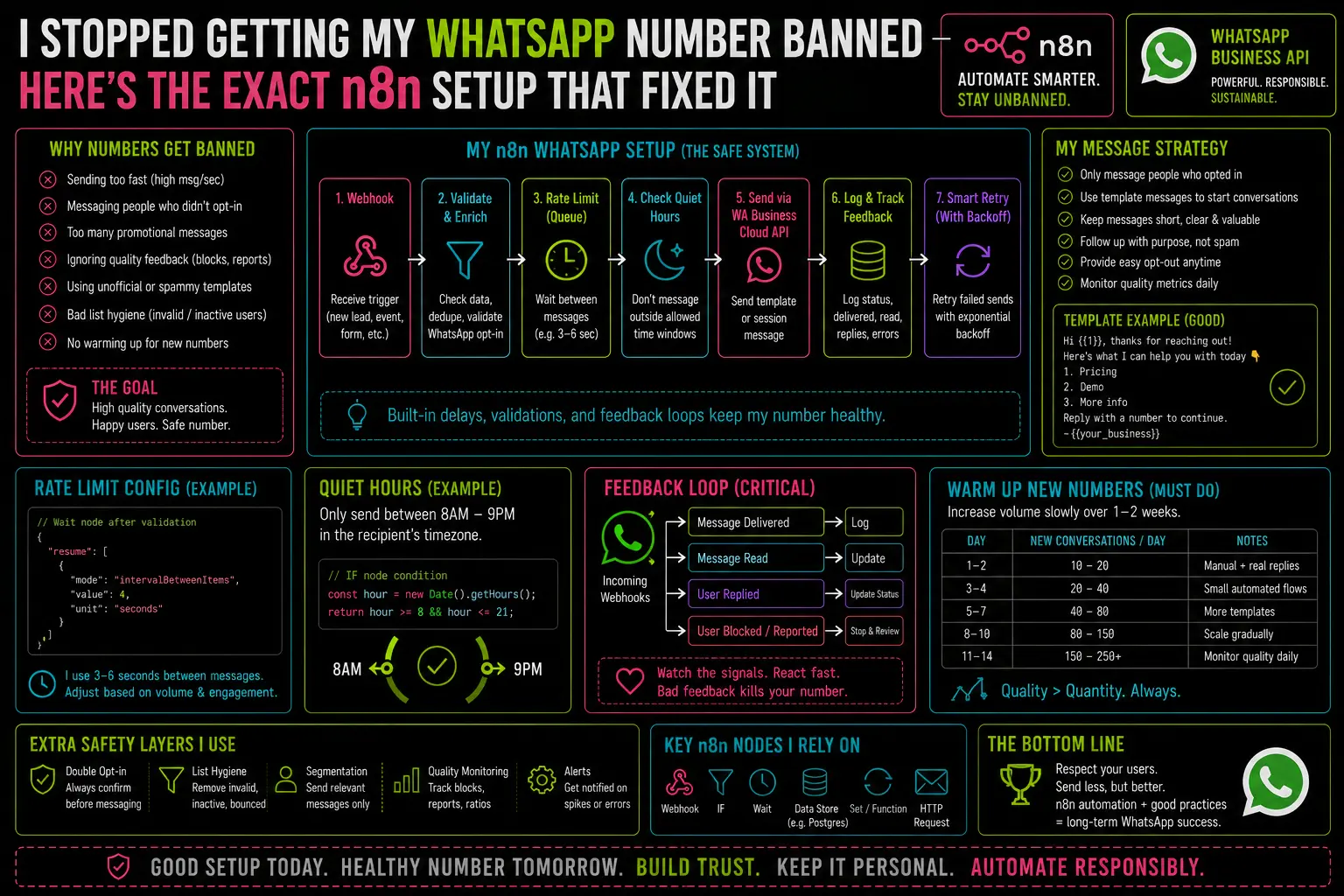
How many messages can you send per day before WhatsApp bans your number?
That’s the question everyone asks. It’s also the wrong question — and the reason most people building WhatsApp automation in n8n get banned before they figure out why. The answer to the right question is much simpler, a lot more frustrating, and fully avoidable once you understand the actual rules.
I got banned twice. The first time was ignorance. The second time was impatience — I knew better and cut a corner anyway. After the second ban, I rebuilt the entire setup from scratch on the official API, and I haven’t had a number pulled since.
What Actually Triggers Bans
Volume is almost never the primary cause. WhatsApp bans numbers for three things:
1. Sending messages outside the 24-hour window without an approved template. Every WhatsApp conversation has a 24-hour clock that resets when the user sends a message. Within that window, you can send any free-form text. Outside it — if you’re sending a follow-up, a reminder, or a re-engagement message — you must use a pre-approved message template. Send free-form text to someone whose window has closed and you’re violating the Business Messaging Policy. Do it at scale and your number gets flagged.
2. Using unofficial automation libraries. This one is how I got banned the first time. I’d found an n8n community workflow that used an HTTP Request node pointed at a local whatsapp-web.js instance. It worked great for about 11 days. Then WhatsApp detected the unofficial client signature and suspended the number. Libraries like whatsapp-web.js, Baileys, and similar tools work by impersonating the WhatsApp Web client. Meta knows the fingerprints. They ban the numbers.
3. High user block and spam report rate. If recipients are blocking your number or reporting your messages as spam, WhatsApp’s systems notice. This is a content and targeting problem, not a technical one — but it’s worth knowing that ban decisions aren’t purely rule-based. Perceived spam behavior matters.
The Official API Setup in n8n
Meta’s Cloud API (formerly WhatsApp Business API) is the only compliant path for automation at any real scale. It’s not difficult to set up — the friction is mostly account verification steps, not technical complexity.
What you get:
- First 1,000 user-initiated conversations per month free
- Business-initiated conversations billed per conversation (rates vary by country, roughly $0.01–$0.08)
- No risk of ban from unofficial API detection
- Webhook delivery for incoming messages
- Message status callbacks (delivered, read, failed)
Setting up in n8n: The Meta Cloud API is accessed via HTTP Request nodes. There’s no official n8n node for it, but the API is well-documented and the integration is straightforward. You need:
- A Meta Business account verified
- A WhatsApp Business account linked to a phone number
- A permanent access token (generate in Meta Developer Console)
- Your WhatsApp Business Account ID and Phone Number ID
Once those are in hand, sending a message is a single HTTP POST:
POST https://graph.facebook.com/v19.0/{phone-number-id}/messagesAuthorization: Bearer {token}Content-Type: application/json{ "messaging_product": "whatsapp", "to": "{recipient-number}", "type": "text", "text": { "body": "Your message here" }}For the n8n workflow: an HTTP Request node with the above configuration, credentials stored using n8n’s built-in credential manager (never hardcode the token), and the recipient number pulled from {{ $json.to }} or wherever it sits in your data.
The 24-Hour Window Logic in Your Workflow
This is the piece that requires deliberate design. For every outgoing message, you need to know whether you’re inside or outside the recipient’s 24-hour window. That means storing last_message_from_user_at somewhere you can check.
I store it in Postgres alongside the contact record:
ALTER TABLE contacts ADD COLUMN last_user_message_at TIMESTAMPTZ;
Every time an incoming WhatsApp message hits the webhook, the workflow updates this timestamp:
UPDATE contactsSET last_user_message_at = NOW()WHERE phone = $1
When sending an outbound message, the workflow checks the window first:
IF node: NOW() - last_user_message_at < INTERVAL '24 hours'→ TRUE branch: send free-form text message→ FALSE branch: send approved template message
If the template branch fires and you don’t have an approved template for the use case, the workflow logs it and stops. No message goes out. No policy violation.
Priya — who runs intake workflows for three agencies — got her number banned twice using unofficial tools before switching to this setup. She’s been on the official API for eight months with zero suspensions, handling roughly 400 conversations a month across her client accounts. The setup took an afternoon, mostly waiting for Meta’s verification steps to process.
Setting Up Approved Templates
Templates are created in the Meta Business Suite under WhatsApp Manager → Message Templates. Each template is submitted for review — approval typically takes a few minutes to a few hours for straightforward templates, longer for anything that looks promotional.
Template categories:
- Utility — transactional messages tied to an action the user took (order confirmation, appointment reminder). Cheapest to send.
- Marketing — promotional content. Higher per-conversation cost.
- Authentication — OTP and verification codes.
For most lead and client management workflows, Utility templates are the right category. A follow-up that says “Hi {{1}}, following up on your inquiry from {{2}} — do you have a few minutes to connect?” is Utility if it’s tied to a prior action.
The template in n8n is sent with a different type in the HTTP body:
{"messaging_product": "whatsapp","to": "{{recipient}}","type": "template","template": {"name": "follow_up_inquiry","language": { "code": "en_US" },"components": [{"type": "body","parameters": [{ "type": "text", "text": "{{contact_name}}" },{ "type": "text", "text": "{{inquiry_date}}" }]}]}}
This is more verbose than a free-form message, but it’s the only compliant path for messaging outside the 24-hour window.
Receiving Messages: The Webhook Side
Meta sends incoming messages to a webhook URL you configure in the Developer Console. In n8n, the webhook node handles this — set it to POST, copy the URL into the Meta webhook configuration, and verify using the challenge token Meta sends on setup.
Incoming message payloads are nested and need parsing. A Code node at the start of the intake workflow normalizes them cleanly before the rest of the workflow runs. If you’ve already built a WhatsApp intake workflow, the custom WhatsApp CRM post covers the full payload structure.
And as with any webhook-triggered workflow: error handling is essential. A missed WhatsApp message because the workflow failed silently is a missed lead.
The Short Version
Don’t use unofficial libraries. Use Meta Cloud API. Store the last inbound message timestamp. Check it before every outbound message. Use templates outside the 24-hour window.
That’s the entire ruleset. The ban isn’t a mystery — it’s a predictable outcome of ignoring a documented policy. Follow the policy and you don’t get banned. Getting there requires one afternoon of setup and one SQL column.
— axiomcompute