
The message came in on a Tuesday morning: “Hey, I haven’t received any new leads in the portal since Saturday.”
My first thought was that the client’s form was broken. My second thought — the one that turned my stomach — was that I hadn’t set up any alerts on that workflow. I opened the n8n execution log. There it was: 47 failed executions over three days, all silent, all logged nowhere I would’ve seen without actively looking. The webhook was firing. The workflow was receiving the data. And then a downstream HTTP node was timing out, the workflow was dying, and n8n was doing exactly what it’s configured to do by default: nothing. No email. No alert. No retry. Just a quiet red X in a log I wasn’t watching.
That was eight months ago. I’ve had zero data-loss incidents since. Here’s what changed.
Why n8n Fails Silently (and Why That’s Actually the Default)
Most n8n workflows have no error handling configured at all. Not because builders are careless — because n8n doesn’t force you to add it, and the defaults look fine right until they aren’t.
When a node fails in a standard workflow, n8n stops execution at that node and marks the run as “Error” in the execution log. That’s it. No notification. No retry. The data that triggered that run is gone unless you go looking for it. If your workflow is triggered by a webhook — which is most production workflows — those failed payloads aren’t queued anywhere. They’re dropped.
The execution log keeps them, but only for as long as your log retention is set to keep runs. On a default self-hosted instance with pruning enabled, that window is shorter than you think.
I assumed the log was a safety net. It isn’t. It’s a forensics tool. There’s a difference.
The Three Layers — and What Each One Actually Does
n8n gives you error handling at three levels. Most tutorials cover one of them and skip the other two. All three matter.
Layer 1: Per-node settings
Every node has two options you can enable under its settings panel: Continue on Fail and Retry on Fail.
Retry on Fail is the simpler one. Set it to retry 2–3 times with a wait of a few seconds, and transient failures — a flaky API, a brief network hiccup — stop causing full workflow crashes. I run this on every HTTP Request node and every Postgres node in production.
Continue on Fail is the one that trips people up. When you enable it, the node passes execution forward even if it fails, adding an error property to the item. It looks like error handling. It isn’t, really — it’s error continuation. The workflow keeps running with potentially corrupt or incomplete data. Whether that’s what you want depends entirely on what the downstream nodes do with that item. I’ve used it in exactly two places: as a way to route failed items down a separate branch, and never as a “just keep going” setting.
Layer 2: Error Trigger node
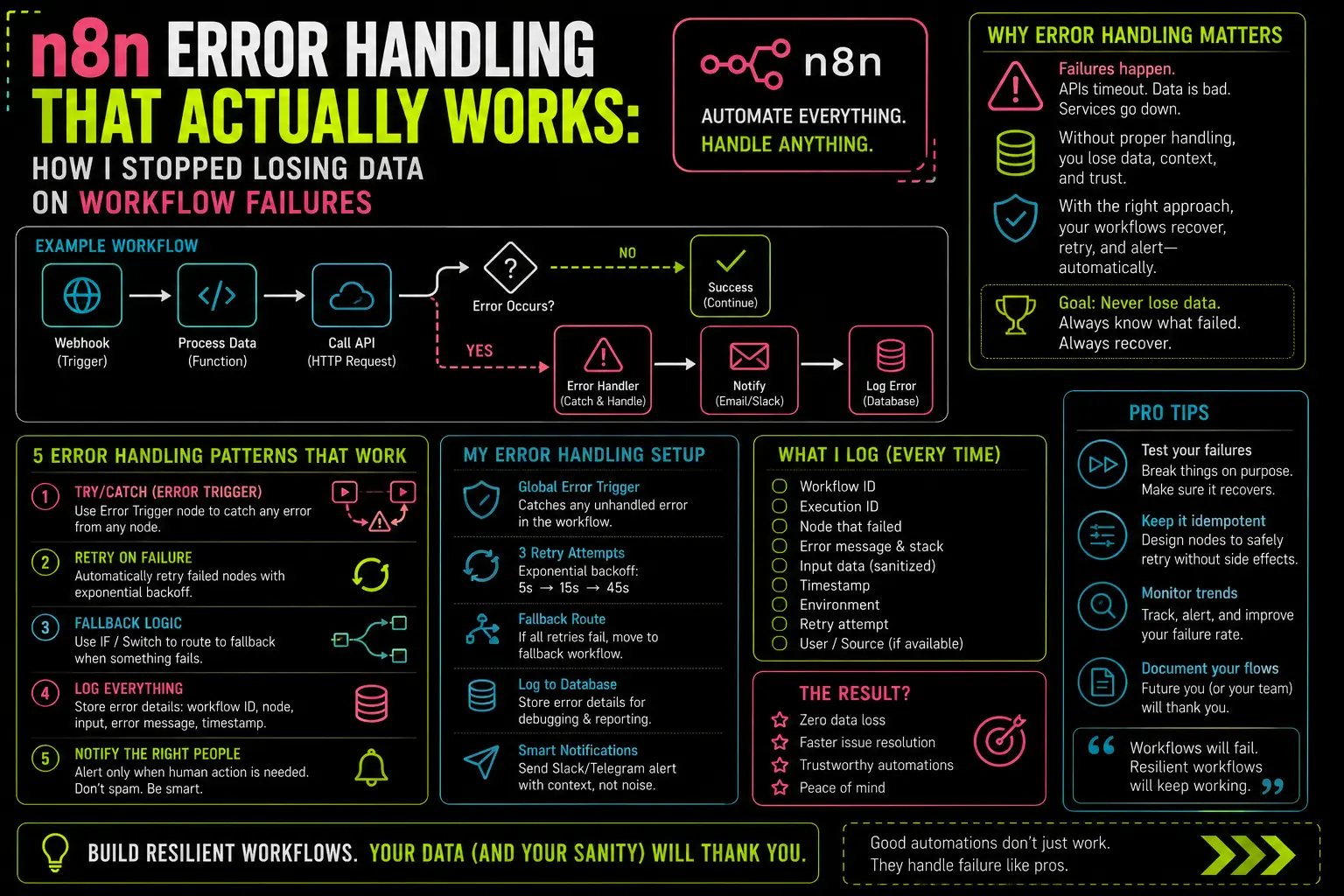
This is the mechanism that actually solved my Tuesday problem. The Error Trigger node fires when a workflow it’s watching fails. You build a dedicated error-handling workflow — trigger is Error Trigger, then a Telegram message, a Slack alert, a Postgres log write, whatever you need — and then you point your production workflows at it.
The setup is two steps. First, build your error workflow and note its name. Second, open each production workflow, go to Settings, and set the Error Workflow field to that name. That’s it. Every time that production workflow throws an unhandled error, n8n fires your error workflow automatically, passing the failed workflow’s name, the error message, and the execution ID.
I send myself a Telegram message with the workflow name and error text. Takes about 30 seconds to read, and I know within minutes when something has broken — not on Tuesday morning when a client mentions it.
Layer 3: Stop and Error node
This one’s underused. The Stop and Error node lets you intentionally throw an error from inside a workflow — with a custom message you write. Drop it after an IF node that checks whether incoming data is valid. If the data fails your check, route it into Stop and Error. The error workflow fires, you get notified, and the payload is preserved in the execution log for inspection.
Before I learned this pattern, I was handling bad data by logging it to a Postgres table and continuing. That works, but it means corrupted or incomplete data keeps moving through your pipeline. Stop and Error means the workflow halts cleanly, you get alerted immediately, and nothing downstream acts on garbage input.
The Pattern I Run on Every Production Workflow
Here’s the exact structure I use now. It’s not clever. It’s just consistent.
The error notification workflow:
Error Trigger→ Set node (format the message: workflow name + error + execution ID)→ Telegram node (send to my personal bot)→ Postgres node (INSERT into error_log table)
The Postgres log is the part I’d skip if I were rushing, and the part I’m glad I didn’t skip. When an error fires at 3am and I look at it in the morning, having the full error text, workflow name, and timestamp in a queryable table is worth the extra two minutes of setup. My error_log table is just four columns: id, workflow_name, error_message, created_at. That’s enough.
The production workflow settings:
Every production workflow gets:
- Error Workflow: set to the error notification workflow above
- On every HTTP Request node: Retry on Fail = 3 attempts, 2-second wait
- On every Postgres node: Retry on Fail = 2 attempts, 1-second wait
- Continue on Fail: disabled by default, enabled only when I’m explicitly branching on errors
One thing that surprised me: the Error Trigger node doesn’t fire if you trigger execution manually from the n8n editor. It only fires on production runs — workflow executions triggered by webhooks, schedules, or other automated triggers. Test your error workflow by using the Test button on the Error Trigger itself, not by manually triggering the workflow you’re watching.
What I Got Wrong the First Time
When I first read about error handling in n8n, I turned on Continue on Fail on every node and assumed I’d handled it. I hadn’t. I’d just made failures quieter.
The WhatsApp CRM workflow I wrote about in an earlier post was running in production with Continue on Fail enabled across the board. A contact would come in, the Postgres write would fail silently, and the workflow would continue — confirming to the client that the lead had been received, while the data quietly went nowhere. I found it six weeks later when a client asked why a specific contact wasn’t in their system.
The fix was stripping out Continue on Fail, adding the Error Trigger pattern above, and adding a Stop and Error node after the Postgres write to make the workflow halt visibly instead of continuing with missing data. That client workflow has been clean for five months.
A Note on Webhooks Specifically
Webhook-triggered workflows have a particular failure mode worth knowing. If the workflow fails after n8n has already sent the HTTP 200 response back to the caller — which happens immediately on receipt — the caller has no idea the failure occurred. They got a success response. The data is lost.
This is by design. n8n responds to the webhook caller before executing the workflow, because holding the response open while the workflow runs would time out most callers. The consequence is that for webhook workflows, your error workflow is your only safety net. There’s no automatic retry from the caller’s side. If you’re still getting your head around how webhook flows work in n8n, the webhook explainer on the blog covers the request/response lifecycle clearly before getting into this layer.
Before You Ship Another Workflow
The three things I check before a workflow goes into production:
- Is the Error Workflow field set in Settings?
- Does every HTTP node have Retry on Fail configured?
- Have I intentionally decided what happens to bad data — route it, stop on it, or log it — rather than just letting Continue on Fail swallow it?
None of this takes long. The error notification workflow took me 20 minutes to build the first time. Now I duplicate it for each project and it’s done in two. The alternative is finding out something broke because a client noticed before you did.
Forty-seven silent failures. That number fixed my habits faster than any documentation ever could.
— axiomcompute